---
title: How to run a Statement of Information
description: This article is intended as a quick guide to help you run a Statement of Information in accordance with the Estate Agents Amendment (Underquoting)...
---
[Skip to content](https://help.hutly.com/buddybee/quick-guide-statement-of-information-#main-content)
English - Australia
Show submenu for translations
[More support](https://help.hutly.com/kb-tickets/new?hsLang=en-au)
[.png?width=150&height=85&name=Hutly_RGB_MainLogo_Landscape_Black%20(5).png)](https://hutly.com/?hsLang=en-au)
- [Sign in](https://au.hutly.com/)
- [Contact us](https://hutly.com/adlforms/contact)
Open main navigation
Close main navigation
- [Sign in](https://au.hutly.com/)
- [Contact us](https://hutly.com/adlforms/contact)
- English - Australia
Show submenu for translations
- [More support](https://help.hutly.com/kb-tickets/new)
- Contact us
Contact us
How can we help you?
- There are no suggestions because the search field is empty.
1. [Hutly Knowledge Base](https://help.hutly.com/?hsLang=en-au)
2. [Property Data](https://help.hutly.com/property-data?hsLang=en-au)
3. [Statement of Information (SOI)](https://help.hutly.com/property-data?hsLang=en-au#statement-of-information-soi)
# How to run a Statement of Information
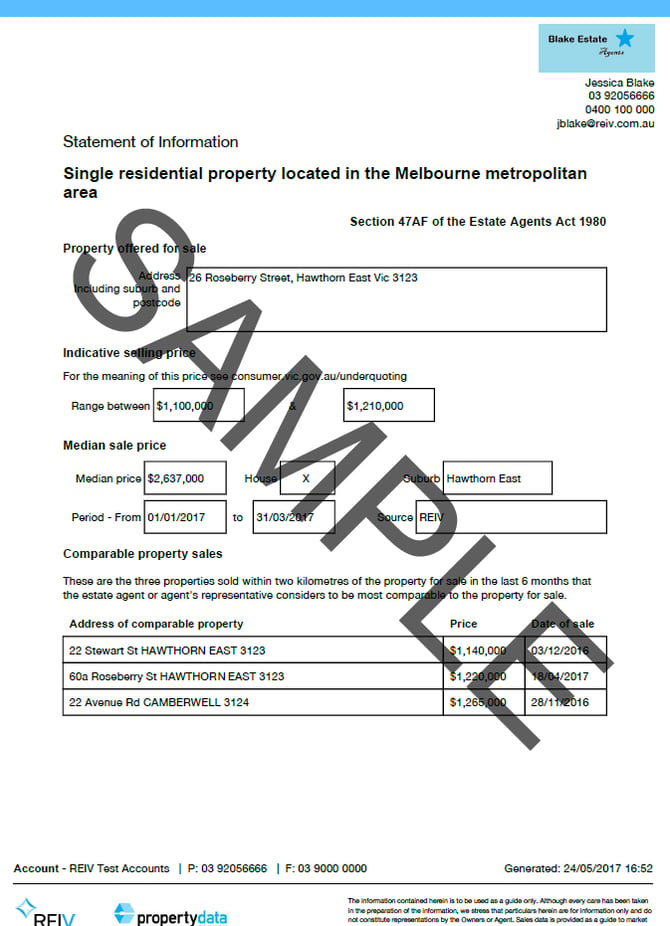
This article is intended as a quick guide to help you run a Statement of Information in accordance with the Estate Agents Amendment (Underquoting) Act 2016.
#### **Step 1: Select the "Statement of Information" tab from the toolbar**

#### **Step 2: Start typing the target property address into the top search bar and select the property from the drop-down box. **
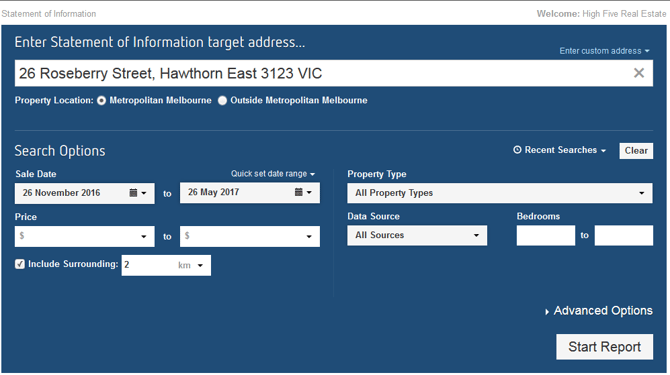
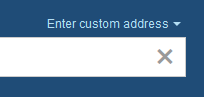
If the property does not appear in the list, you can **enter a custom address by clicking “Enter custom address” **or contact customer service [here](mailto:propertydata@propertydata.com.au)
Our system will automatically set the search criteria to Metropolitan Melbourne or Outside Metropolitan Melbourne, depending on the location of the target property as per the guidelines from Consumer Affairs Victoria. For a full list of the municipalities included in metro Melbourne, please refer to:
[**Definitions: Metropolitan Melbourne**](https://help.propertydata.com.au/support/hc/en-us/articles/4410529353623-metropolitan-melbourne?hsLang=en-au)
****
Search Criteria: 2km radius, last 6 months of sales
****
Search Criteria: 5km radius, last 18 months of sales
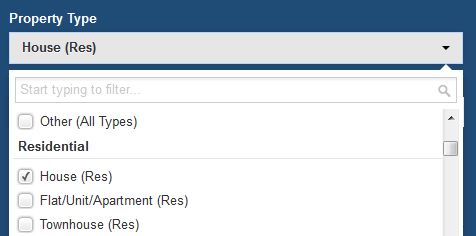
#### **Step 3: Refine the search data by entering any further criteria**
#### **Step 4: Click "Start Report" to continue to the results page**
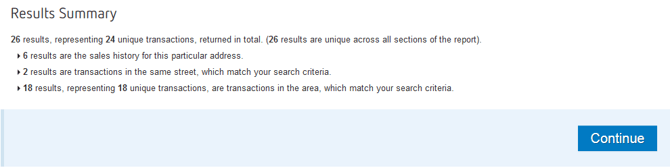
##### **Step 5: Choose up to three comparable sales.**
The sales are divided into Property History, Comparable Sales (Street), and Comparable Sales (Suburb). Click on each tab to navigate between the results.

Property History 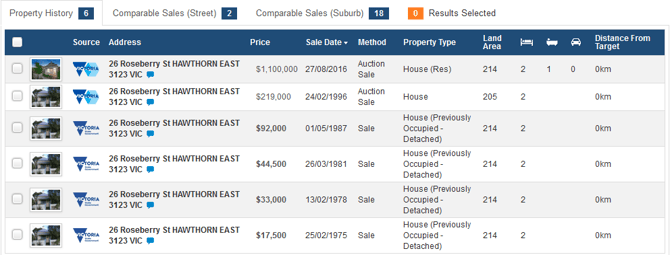
Comparable Sales (Street) on the same street as target property. 
Comparable Sales (Suburb) in the same suburb as the target property. 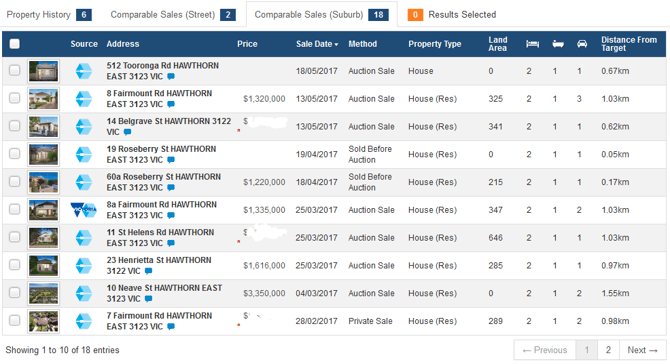
You can click on each record to get further information about the sale.
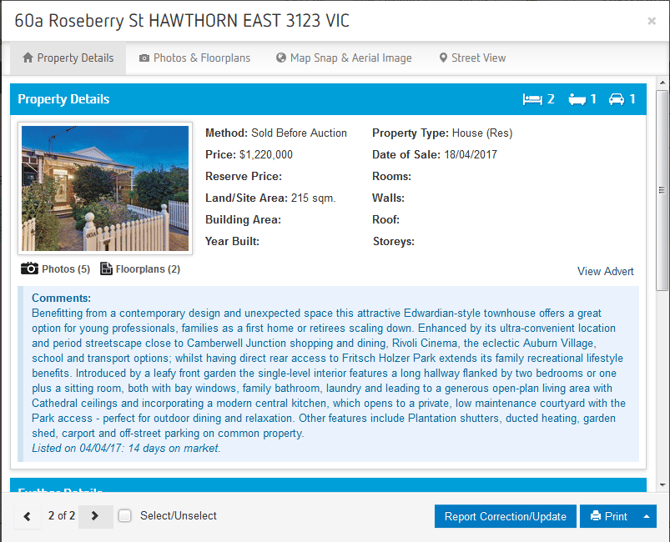
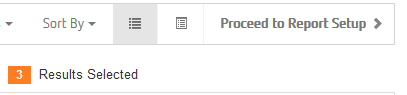
#### **Step 6: Tick 3 comparable sales and click on "Proceed to Report Setup"**
#### **Step 7: Choose an image for the target property or upload your own**
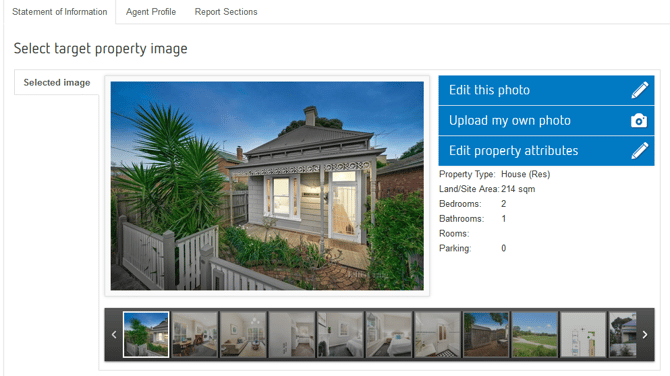
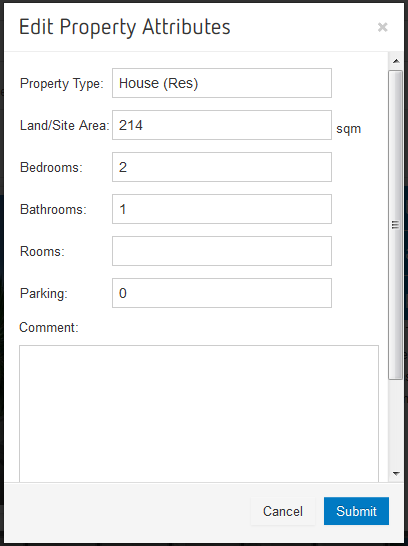
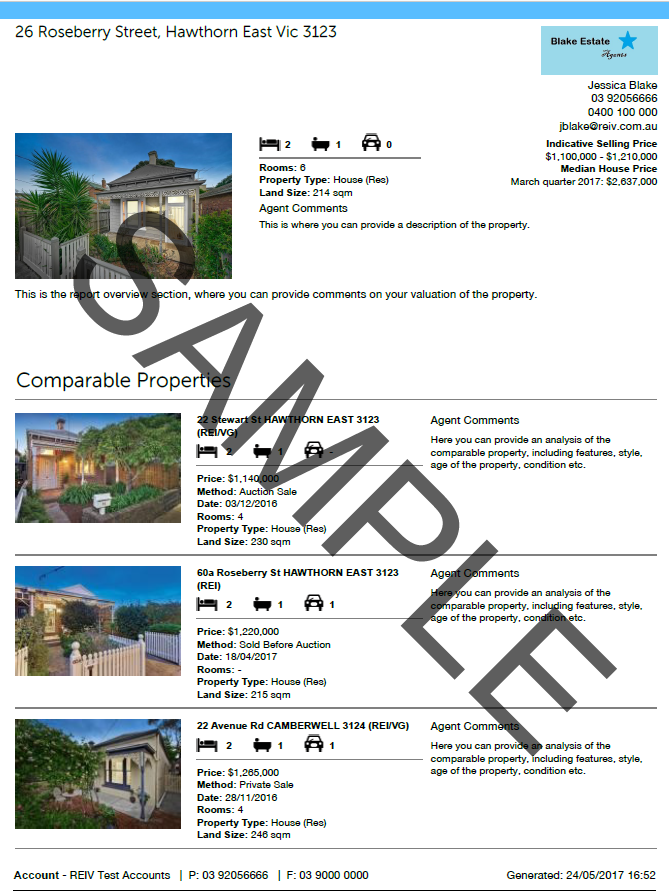
#### **Step 8: Click on "Edit property attributes" and add/update property details and/or comments about the property**
#### **Step 9: Edit the "Pricing Information" and choose median price to appear on the report. Add comments to the "Report overview" section (Optional)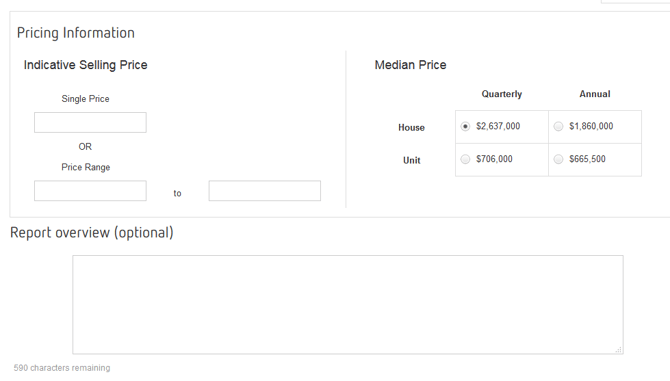**
#### **Step 10: Review your 3 chosen comparable sales and add comments by clicking on the pencil icon**
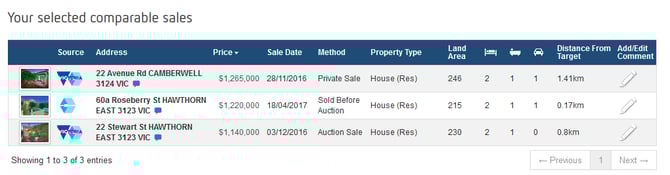
You can change the order the records will appear in by sorting the information by clicking on the column headers.
#### **Step 11: Click on the "Agent Profile" tab and select an agent from the drop down box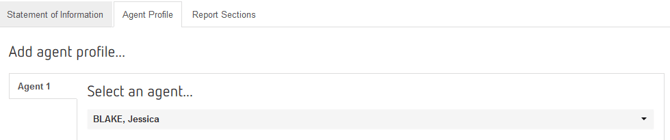**
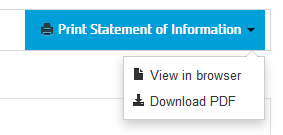
#### **Step 12: Click "Print Statement of Information" and choose either View in browser or Download PDF**
**Sample of the finished Statement of Information **
- [Hutly](https://help.hutly.com/hutly?hsLang=en-au#main-content)
- [Agentic AI](https://help.hutly.com/hutly?hsLang=en-au#agentic-ai)
- [Workspaces \[Forms\]](https://help.hutly.com/hutly?hsLang=en-au#workspaces-forms)
- [eSigning](https://help.hutly.com/hutly?hsLang=en-au#esigning)
- [ADL Forms](https://help.hutly.com/hutly?hsLang=en-au#adl-forms)
- [VicForms](https://help.hutly.com/hutly?hsLang=en-au#vicforms)
- [Property Data](https://help.hutly.com/property-data?hsLang=en-au#main-content)
- [CMA (Sales & Rental)](https://help.hutly.com/property-data?hsLang=en-au#cma-sales-rental)
- [Statement of Information (SOI)](https://help.hutly.com/property-data?hsLang=en-au#statement-of-information-soi)
- [Search & Mapping](https://help.hutly.com/property-data?hsLang=en-au#search-mapping)
- [Market Insights](https://help.hutly.com/property-data?hsLang=en-au#market-insights)
- [API & Data Feeds](https://help.hutly.com/property-data?hsLang=en-au#api-data-feeds)
- [Mobile App](https://help.hutly.com/property-data?hsLang=en-au#mobile-app)
- [Result Reporting](https://help.hutly.com/property-data?hsLang=en-au#result-reporting)
- [Account & Platform](https://help.hutly.com/account-platform?hsLang=en-au#main-content)
- [Getting Started](https://help.hutly.com/account-platform?hsLang=en-au#getting-started)
- [Hutly Credits](https://help.hutly.com/account-platform?hsLang=en-au#hutly-credits)
- [Subscription & Pricing](https://help.hutly.com/account-platform?hsLang=en-au#subscription-pricing)
- [Hutly Settings](https://help.hutly.com/account-platform?hsLang=en-au#hutly-settings)
- [Property Data Settings](https://help.hutly.com/account-platform?hsLang=en-au#property-data-settings)
- [Security & Compliance](https://help.hutly.com/account-platform?hsLang=en-au#security-compliance)
- [Troubleshooting](https://help.hutly.com/account-platform?hsLang=en-au#troubleshooting)
- [Sign in](https://au.hutly.com/)
- [Contact us](https://hutly.com/adlforms/contact)
[-1.png?width=150&height=85&name=Hutly_RGB_MainLogo_Landscape_Black%20(3)-1.png "Hutly_RGB_MainLogo_Landscape_Black (3)-1")](https://help.hutly.com/?hsLang=en-au)
[mailto:email@email.com](mailto:email@email.com)
Copyright © 2026, Hutly Pty Ltd