---
title: How to select results in a Rental CMA Report
description: "This article is intended to help you sort results and print reports in Sales Search. Step 1: Run the search using your specified criteria as per HOW TO:..."
---
[Skip to content](https://help.hutly.com/buddybee/how-to-select-results-in-a-rental-cma-report-#main-content)
English - Australia
Show submenu for translations
[More support](https://help.hutly.com/kb-tickets/new?hsLang=en-au)
[.png?width=150&height=85&name=Hutly_RGB_MainLogo_Landscape_Black%20(5).png)](https://hutly.com/?hsLang=en-au)
- [Sign in](https://au.hutly.com/)
- [Contact us](https://hutly.com/adlforms/contact)
Open main navigation
Close main navigation
- [Sign in](https://au.hutly.com/)
- [Contact us](https://hutly.com/adlforms/contact)
- English - Australia
Show submenu for translations
- [More support](https://help.hutly.com/kb-tickets/new)
- Contact us
Contact us
How can we help you?
- There are no suggestions because the search field is empty.
1. [Hutly Knowledge Base](https://help.hutly.com/?hsLang=en-au)
2. [Property Data](https://help.hutly.com/property-data?hsLang=en-au)
3. [CMA (Sales & Rental)](https://help.hutly.com/property-data?hsLang=en-au#cma-sales-rental)
# How to select results in a Rental CMA Report
This article is intended to help you sort results and print reports in Sales Search.
**Step 1: Run the search using your specified criteria as per** [How to customise your search for a Rental CMA Report](https://help.hutly.com/buddybee/how-to-customise-your-search-for-a-rental-cma-report-?hsLang=en-au)
**Step 2: View the results that appear**
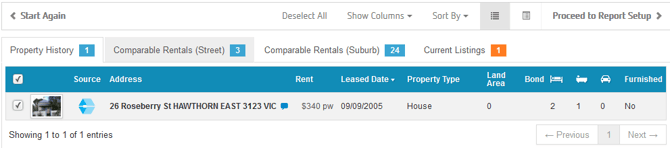
**Step 3: Choose the results that will appear on the Rental CMA Report**
You can navigate between the results by using the tabs below. Click on each record for more information (As per Step 5-6)

**Property History**
Select the rental history of the target property that you would like to appear on the report

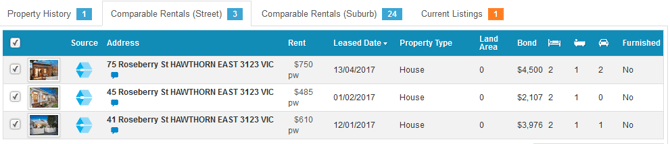
**Comparable Rentals - (Street)**
Select any comparable rentals on the street
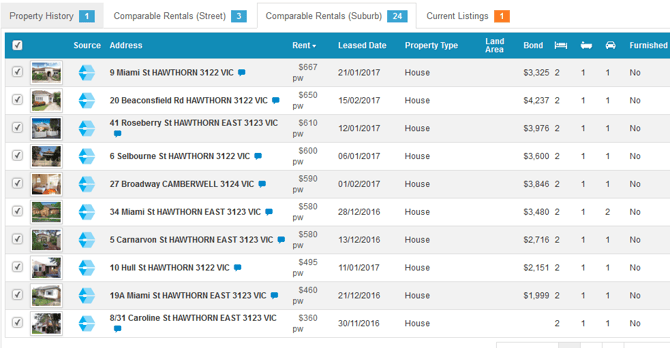
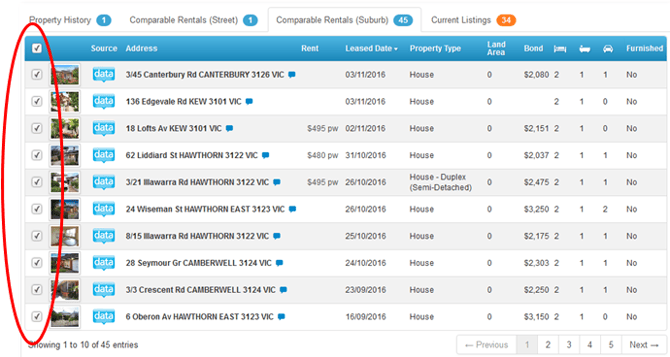
**Comparable Rentals - (Suburb)**
Select any comparable rentals from the suburb
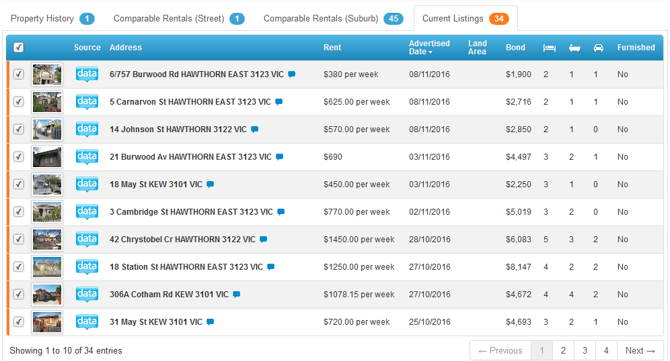
**Current Listings**
Select any current listings to appear on the report
**Step 4: Add or remove columns with extra information by clicking on "Show Columns" and ticking or unticking the list of options**
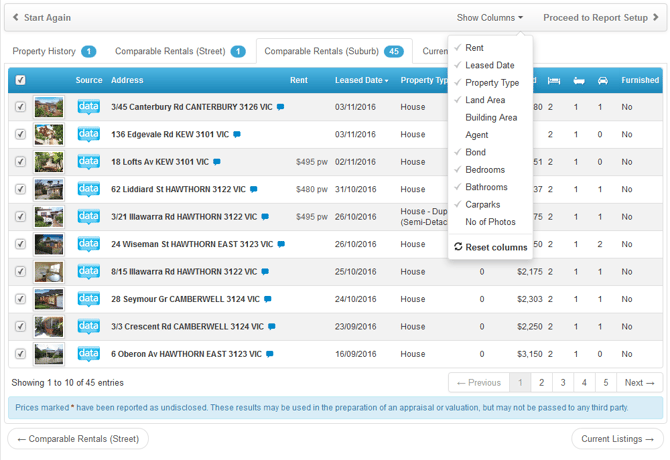
**Step 5: Click on a property address to see the full record**
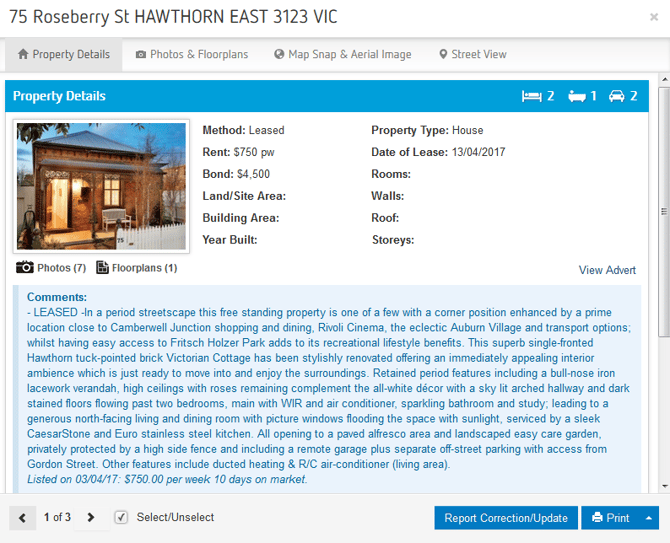
**Step 6: Navigate between the tabs below to view more information about the selected property**

**Property Details**

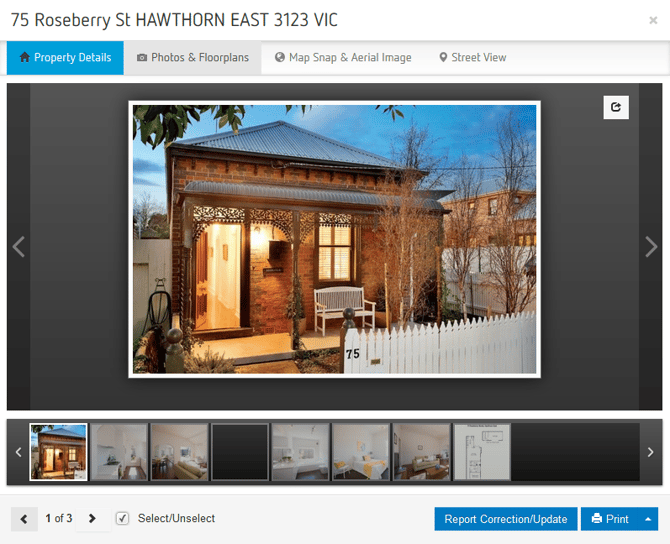
**Photos and Floorplans**
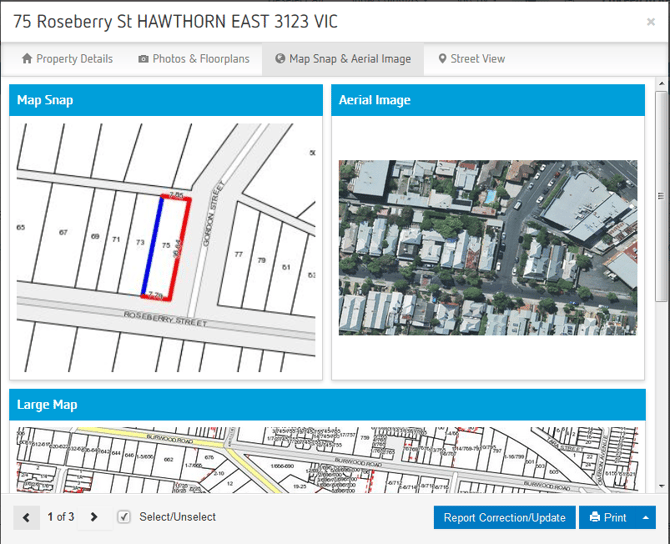
**Map Snap & Aerial Image**
**Street View**
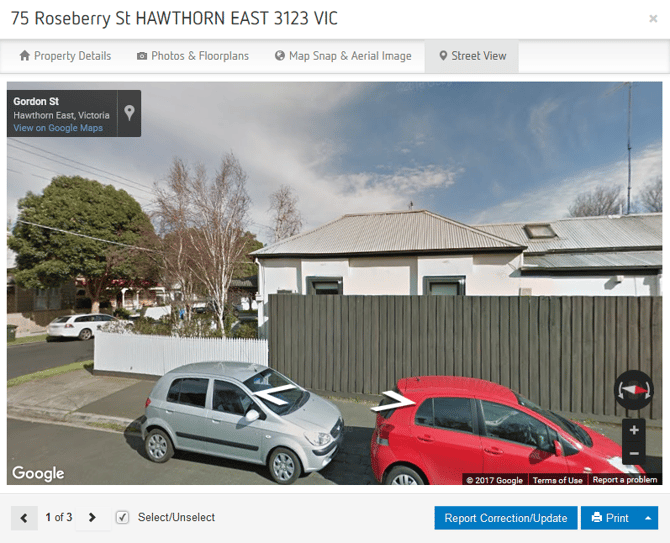
**Step 7: Select the properties that you wish to include in the report. You can do this either by ticking/unticking properties in the detailed list, or by clicking on each individual property and Select/Unselect as per the below images**
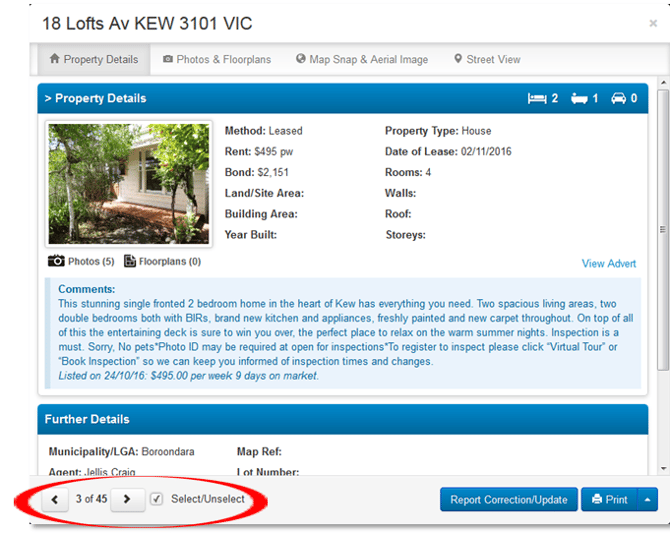

**Step 8: Click on "Proceed to Report Setup" and refer to** [How to customise a Sales CMA Report with agent and agency details](https://help.hutly.com/buddybee/how-to-customise-a-rental-cma-report-with-agent-and-agency-details-?hsLang=en-au)
- [Hutly](https://help.hutly.com/hutly?hsLang=en-au#main-content)
- [Agentic AI](https://help.hutly.com/hutly?hsLang=en-au#agentic-ai)
- [Workspaces \[Forms\]](https://help.hutly.com/hutly?hsLang=en-au#workspaces-forms)
- [eSigning](https://help.hutly.com/hutly?hsLang=en-au#esigning)
- [ADL Forms](https://help.hutly.com/hutly?hsLang=en-au#adl-forms)
- [VicForms](https://help.hutly.com/hutly?hsLang=en-au#vicforms)
- [Property Data](https://help.hutly.com/property-data?hsLang=en-au#main-content)
- [CMA (Sales & Rental)](https://help.hutly.com/property-data?hsLang=en-au#cma-sales-rental)
- [Statement of Information (SOI)](https://help.hutly.com/property-data?hsLang=en-au#statement-of-information-soi)
- [Search & Mapping](https://help.hutly.com/property-data?hsLang=en-au#search-mapping)
- [Market Insights](https://help.hutly.com/property-data?hsLang=en-au#market-insights)
- [API & Data Feeds](https://help.hutly.com/property-data?hsLang=en-au#api-data-feeds)
- [Mobile App](https://help.hutly.com/property-data?hsLang=en-au#mobile-app)
- [Result Reporting](https://help.hutly.com/property-data?hsLang=en-au#result-reporting)
- [Account & Platform](https://help.hutly.com/account-platform?hsLang=en-au#main-content)
- [Getting Started](https://help.hutly.com/account-platform?hsLang=en-au#getting-started)
- [Hutly Credits](https://help.hutly.com/account-platform?hsLang=en-au#hutly-credits)
- [Subscription & Pricing](https://help.hutly.com/account-platform?hsLang=en-au#subscription-pricing)
- [Hutly Settings](https://help.hutly.com/account-platform?hsLang=en-au#hutly-settings)
- [Property Data Settings](https://help.hutly.com/account-platform?hsLang=en-au#property-data-settings)
- [Security & Compliance](https://help.hutly.com/account-platform?hsLang=en-au#security-compliance)
- [Troubleshooting](https://help.hutly.com/account-platform?hsLang=en-au#troubleshooting)
- [Sign in](https://au.hutly.com/)
- [Contact us](https://hutly.com/adlforms/contact)
[-1.png?width=150&height=85&name=Hutly_RGB_MainLogo_Landscape_Black%20(3)-1.png "Hutly_RGB_MainLogo_Landscape_Black (3)-1")](https://help.hutly.com/?hsLang=en-au)
[mailto:email@email.com](mailto:email@email.com)
Copyright © 2026, Hutly Pty Ltd